
From Script to Shot List in 60 Seconds with AI
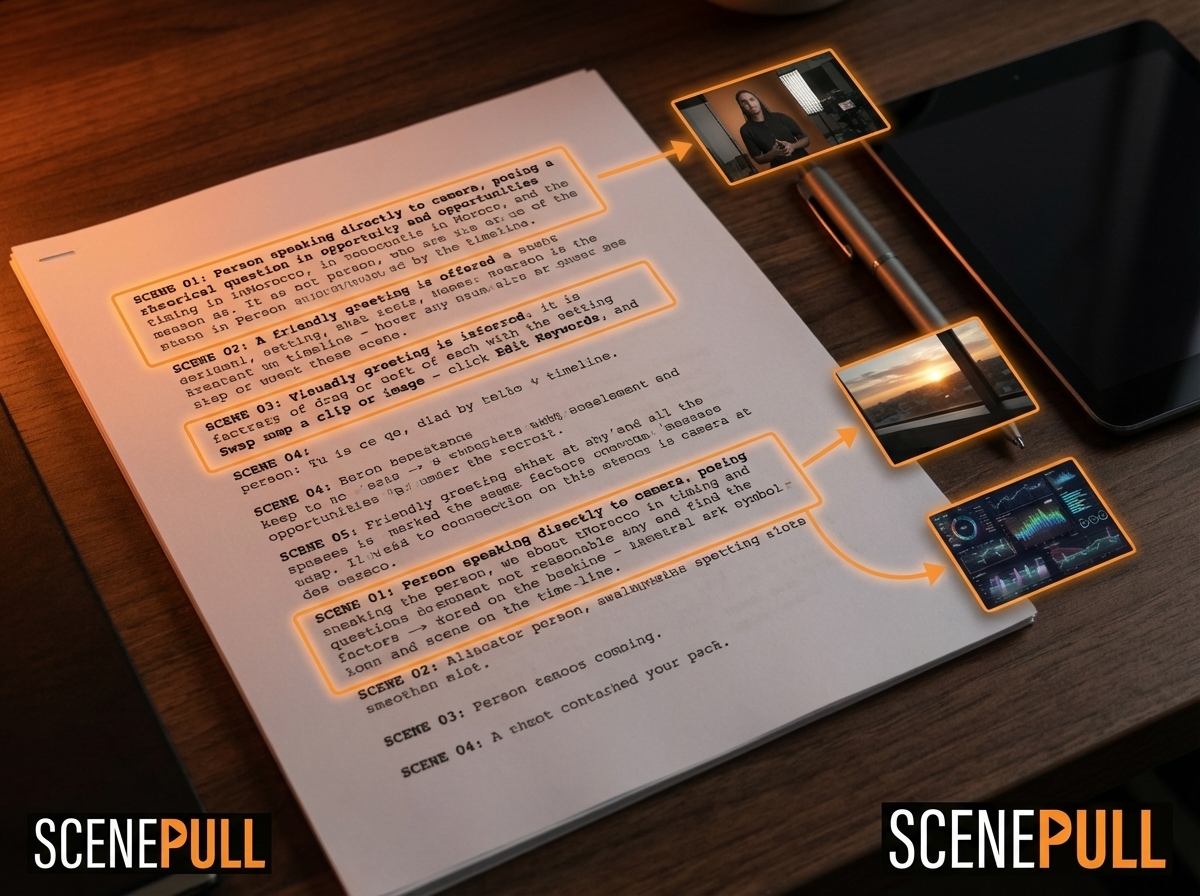
You can turn any video script into a complete shot list in under 60 seconds with an AI tool like ScenePull. Paste your script, get a scene-by-scene breakdown with matched b-roll assets, export to your NLE. What used to take 1-2 hours now takes a minute.
Here's exactly how it works — and when the manual process still makes sense.
What a Shot List Actually Is (And Why You Need One)
A shot list is a pre-production document that maps every scene in your video to the specific footage you'll use. It answers: at this moment in the script, what does the viewer see?
Most YouTubers skip shot lists. They write a script, sit down to edit, and then spend 45-90 minutes hunting for b-roll that fits. The result: editing sessions that drag, footage that sort of fits rather than precisely fits, and a finished video that feels looser than it should.
A proper shot list flips the process. You solve the visual problem before you touch the editing software. When you sit down to cut, every piece of footage is already identified.
What a shot list contains:
- Scene number or timestamp
- Script line or section it covers
- Visual description (what the viewer sees)
- Type of shot (close-up, wide, cutaway, screen recording)
- Source of footage (stock, self-shot, screen capture)
The Traditional Process (And What It Costs You)
Here's the manual workflow most video creators follow:
Step 1 — Read the script (5-10 min) Go through it once just to understand the full arc.
Step 2 — Identify visual moments (15-20 min) Highlight every section that will need b-roll. Note what the ideal visual would be.
Step 3 — Search for footage (30-60 min) Open Pexels, Artgrid, or your personal footage library. Search each moment. Download candidates. Preview. Reject. Search again. Repeat.
Step 4 — Build the shot list (10-15 min) Document what you found, what's still missing, what you need to shoot yourself.
Total time: 60-105 minutes. For a creator publishing 2 videos per week, that's 120-200 hours per year just on shot lists and b-roll sourcing.
The AI-Assisted Process with ScenePull
Step 1 — Paste your script (30 sec) Copy your finished script. Open ScenePull at scenepull.com. Paste it into the script field.
Step 2 — AI analyzes scene by scene (30-60 sec) ScenePull reads the full script and identifies the visual moment in each section. It doesn't just extract keywords — it reads the context. A line about "the loneliness of building a startup alone" gets a different visual treatment than "here's how to set up your LLC."
Step 3 — Review the scene breakdown (5-10 min) You get a structured breakdown: each script section mapped to a recommended visual asset. Review each one. Accept what works, adjust what doesn't.
Step 4 — Export to your NLE (1 min) Pro plan users can export directly to Premiere Pro, DaVinci Resolve, or CapCut. The assets arrive organized by scene, ready to drop into the timeline.
Total time: 7-12 minutes versus 60-105 minutes manually.
Step-by-Step: Using ScenePull for a Real Script
→ Try ScenePull free — paste your first script
Let's say you're making a video on "how to grow your first 1,000 YouTube subscribers." A typical 10-minute script might have 12-15 distinct sections.
What a manual shot list looks like for one section:
Script: "Most creators upload their first 10 videos and quit. They don't see the growth, so they assume it's not working. The reality is: the algorithm needs time to figure out who your audience is."
Manual process: you'd think "I need footage of someone looking discouraged, maybe at a computer. Or maybe a growth chart that stays flat. Then something showing time passing." Then you'd search Pexels for "frustrated creator computer" and get 40 results, most of which don't fit.
What ScenePull produces for the same section:
Scene breakdown: frustration-to-insight arc. Suggested visual: close-up of a flat analytics dashboard, then a cut to hands still typing (persistence), then a visual showing time — a calendar or clock. Three distinct beats, matched to the three sentences.
That level of precision, generated in seconds, for every section of your script.
How to Export to Your NLE
Premiere Pro
ScenePull's Pro export creates an organized bin structure. Each scene gets its own folder. Assets are labeled to match your script sections. Open Premiere, import the ScenePull export package, and your b-roll is already organized.
DaVinci Resolve
Same export logic. The package imports into the Media Pool organized by scene. In the Cut or Edit page, you'll see folders that match your script breakdown.
CapCut
CapCut's import is more straightforward — assets land in your media library. The ScenePull export includes a naming convention that makes it easy to find the right clip for each scene without hunting.
When the Manual Process Still Makes Sense
AI-assisted shot lists are faster for most videos. But three situations still call for the manual approach:
1. Highly personal or emotional content If your video relies heavily on specific personal memories, experiences, or locations, AI won't know what footage you have available from your own library. You still need to manually review your personal archive.
2. Narrative-driven documentary style Complex documentary work where the visual language is doing heavy lifting — where the b-roll tells a story independent of the narration — benefits from a human director's eye at the shot list stage.
3. Very short scripts (under 300 words) For a 2-minute video, the manual process takes maybe 15 minutes. The time saving from AI is smaller, and you might want full manual control over a tight, precise edit.
For everything else — tutorials, explainers, listicles, talking-head videos, vlogs — AI shot list generation is faster and the output quality is comparable to what an experienced editor would build manually.
Shot List Template (If You're Doing It Manually)
If you prefer to build your shot list by hand, here's a simple template:
| Scene # | Timecode (approx) | Script Line | Visual Description | Shot Type | Source | Status |
|---|---|---|---|---|---|---|
| 1 | 0:00-0:15 | "Most creators quit after 10 videos..." | Flat analytics dashboard | Close-up | Pexels | Found |
| 2 | 0:15-0:25 | "The algorithm needs time..." | Calendar pages / clock | Wide | Self-shoot | To do |
Duplicate this row for every scene. Track status as Found, To Shoot, or Missing. Before your edit session, every row should have a status.
Try ScenePull Free
Paste your script, get production-ready b-roll in under 2 minutes. No credit card required.